8BitDo Zero 2 Anki Windows Setup: The Complete Guide Most People Struggle With (And What Actually Works)
Make 8bitdo zero 2 anki windows actually work: map buttons to Anki shortcuts, use X-input mode, a middleman app, and fly through reviews from your couch.
How Flashrecall app helps you remember faster. It's free
So… Can You Use 8BitDo Zero 2 With Anki On Windows?
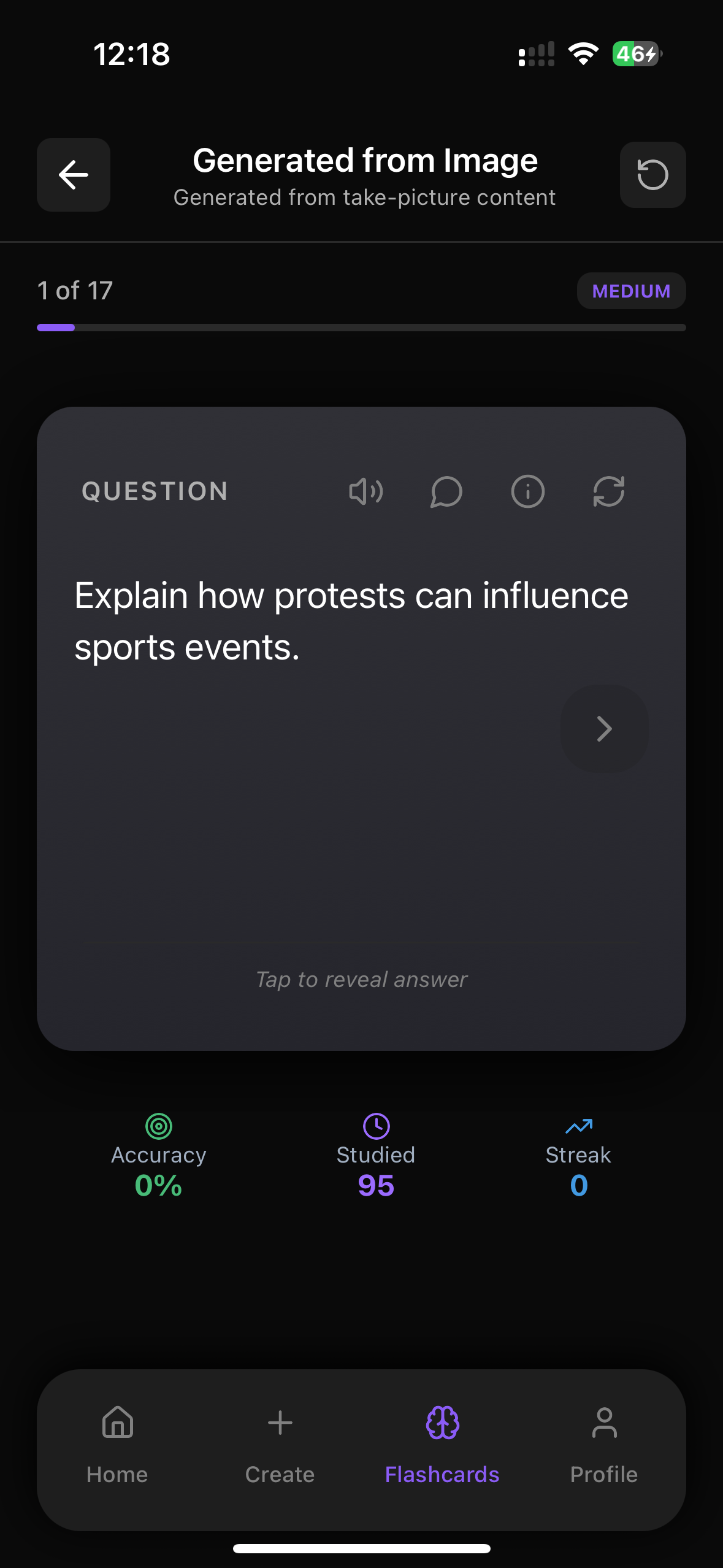
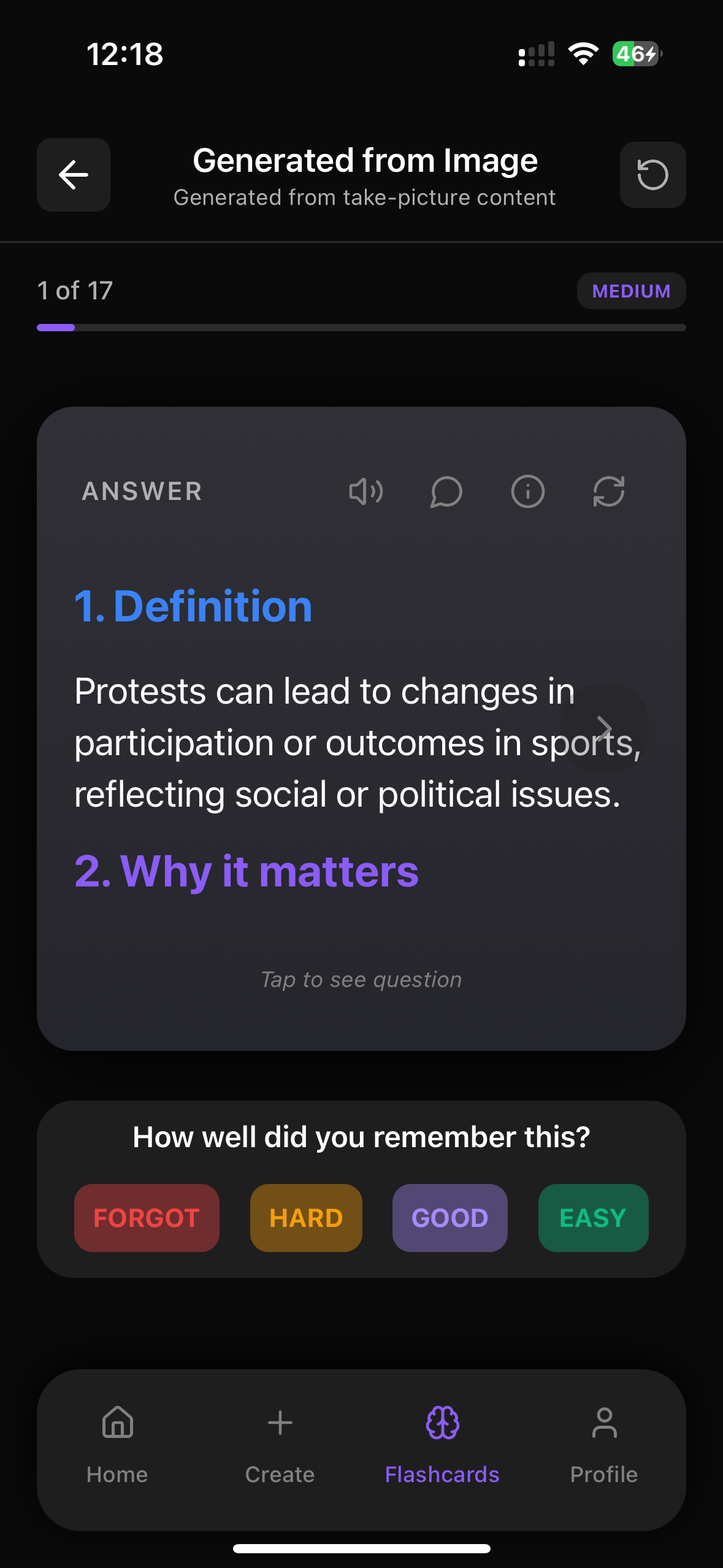
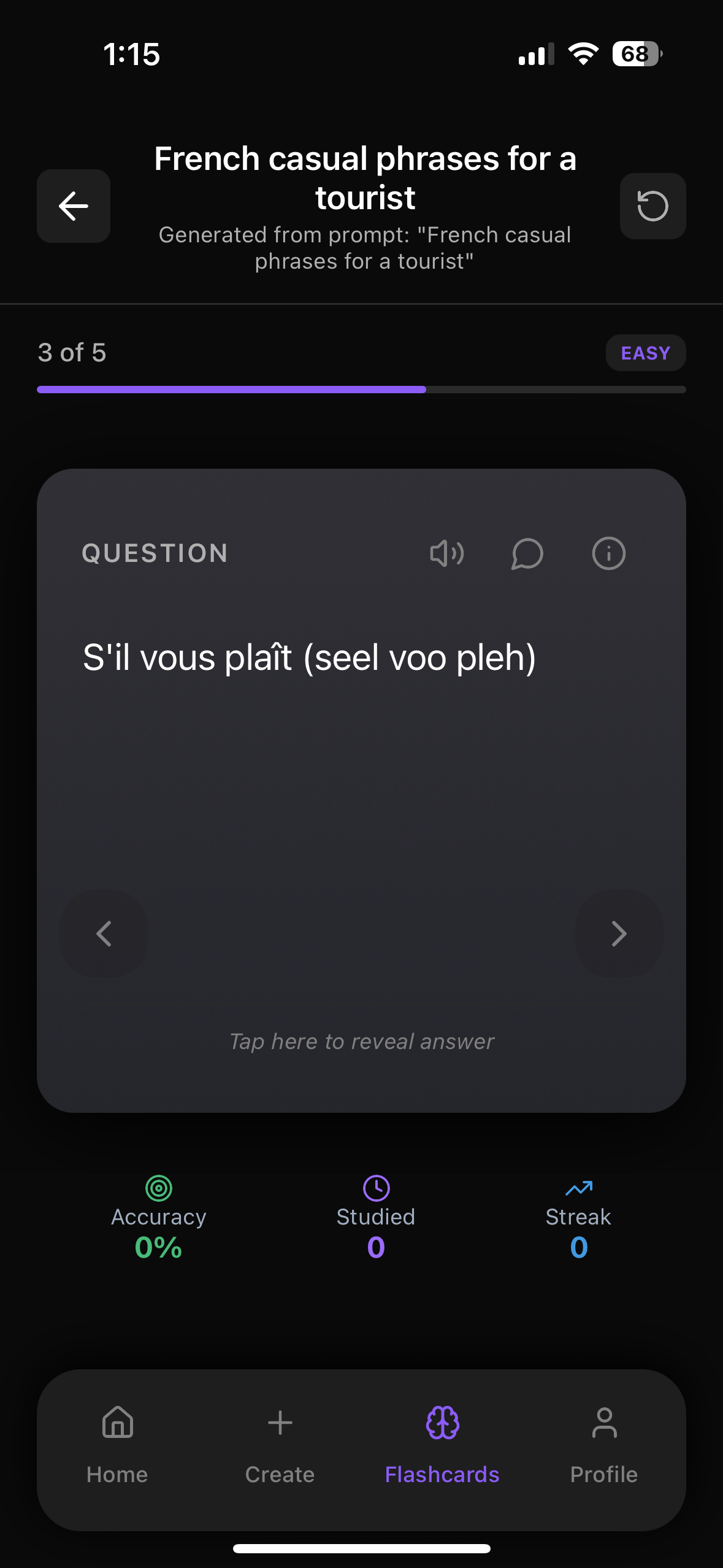
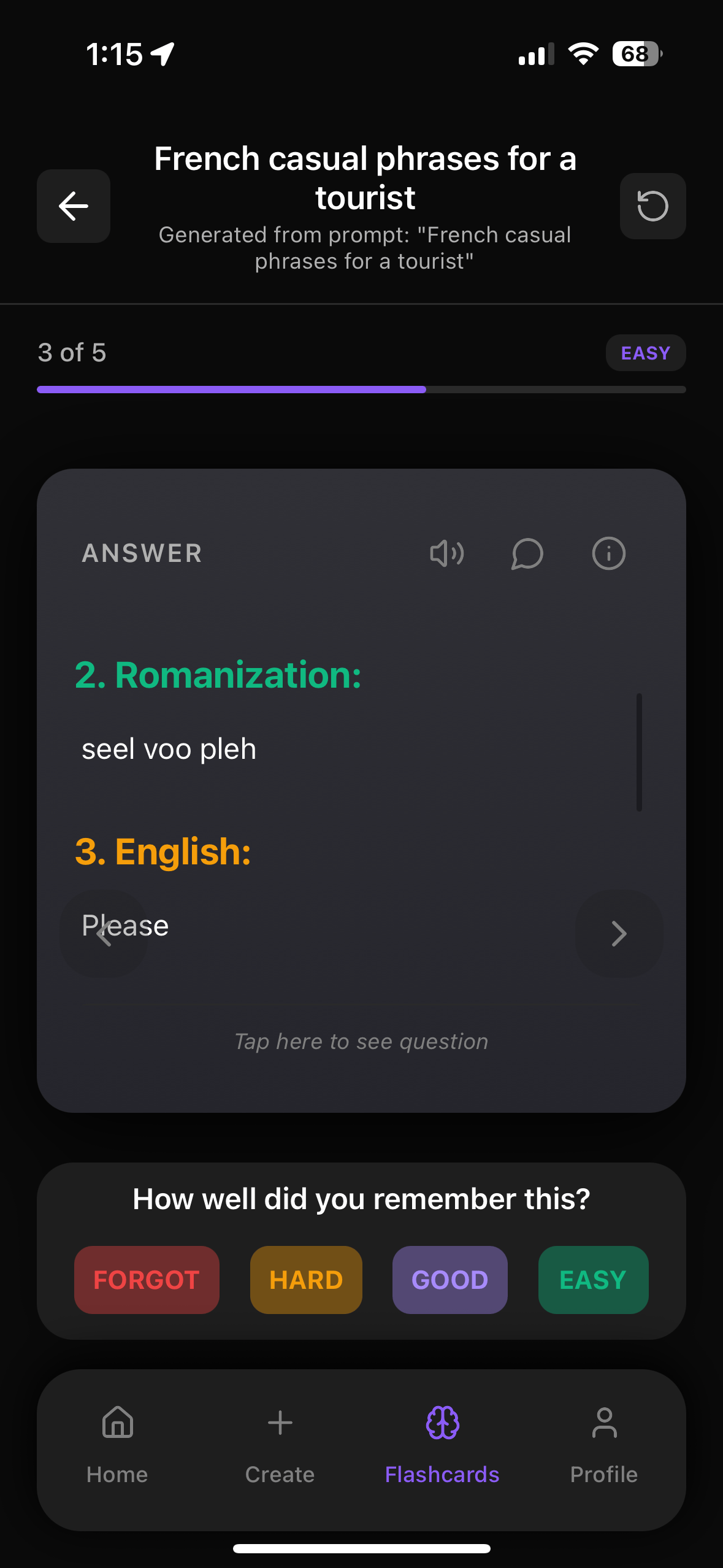
Alright, let’s talk about 8bitdo zero 2 anki windows because yes, it does work, but not directly out of the box. Anki doesn’t natively support game controllers, so you have to make Windows see your 8BitDo Zero 2 as a keyboard or map buttons to keyboard shortcuts. Once you do that, you can flip cards, grade answers, and fly through reviews with just your little gamepad. And honestly, if you like this kind of efficient studying setup, you’ll probably love using an app like Flashrecall on your iPhone/iPad, which already handles all the annoying stuff like spaced repetition and reminders for you:
https://apps.apple.com/us/app/flashrecall-study-flashcards/id6746757085
Quick Overview: What You’re Actually Trying To Do
Let’s keep this simple.
Use your 8BitDo Zero 2 as a mini remote to control Anki on Windows so you don’t have to touch your keyboard while reviewing.
- Anki = expects keyboard shortcuts (1–4, space, enter, etc.)
- 8BitDo Zero 2 = game controller (buttons, D-pad)
- Windows doesn’t magically turn gamepad presses into keyboard keys
So you need a middleman app that says:
> “When I press A on the 8BitDo, pretend I pressed the spacebar on the keyboard.”
Once that’s set up, you can:
- Show answer with one button
- Grade card (Again/Hard/Good/Easy) with four buttons
- Navigate between cards with D-pad
- Chill on your couch or bed while reviewing
Step 1: Set Up Your 8BitDo Zero 2 On Windows
First, make sure your controller is actually connected properly.
1.1 Choose The Right Mode On 8BitDo Zero 2
The 8BitDo Zero 2 has different modes depending on how you power it on:
- X-input (Xbox-style):
Usually Start + X, then power on
Good for Windows games and most tools
- D-input / Switch / Mac modes:
Start + Y / Start + B / etc.
These can sometimes confuse Windows tools
For most people, X-input mode works best with mapping software on Windows.
Check the 8BitDo manual if you’re unsure, but usually:
1. Hold the correct mode button combo (like Start + X)
2. Then power it on
3. You should see a different LED pattern depending on mode
1.2 Connect Via Bluetooth Or USB
- Bluetooth:
- On Windows, go to Settings → Bluetooth & devices
- Turn Bluetooth on
- Press and hold the pairing button on your 8BitDo until it starts flashing
- Click Add device → Bluetooth → select your 8BitDo Zero 2
- USB (if you have a cable):
- Just plug it in
- Windows should recognize it as a game controller
Once connected, you can test it:
- Press Win + R
- Type `joy.cpl`
- Hit Enter
- You should see your controller listed and test buttons there
If that works, you’re ready for the next step.
Step 2: Make The Controller Pretend To Be A Keyboard
Now the fun part: making Anki think your controller is just a keyboard.
There are a few popular tools for this:
- AntiMicroX (free, open source)
- JoyToKey (popular, shareware)
- reWASD (paid, very polished)
I’ll use AntiMicroX as the example because it’s free and does the job.
2.1 Install AntiMicroX
1. Search for AntiMicroX (GitHub or official site)
2. Download the Windows version
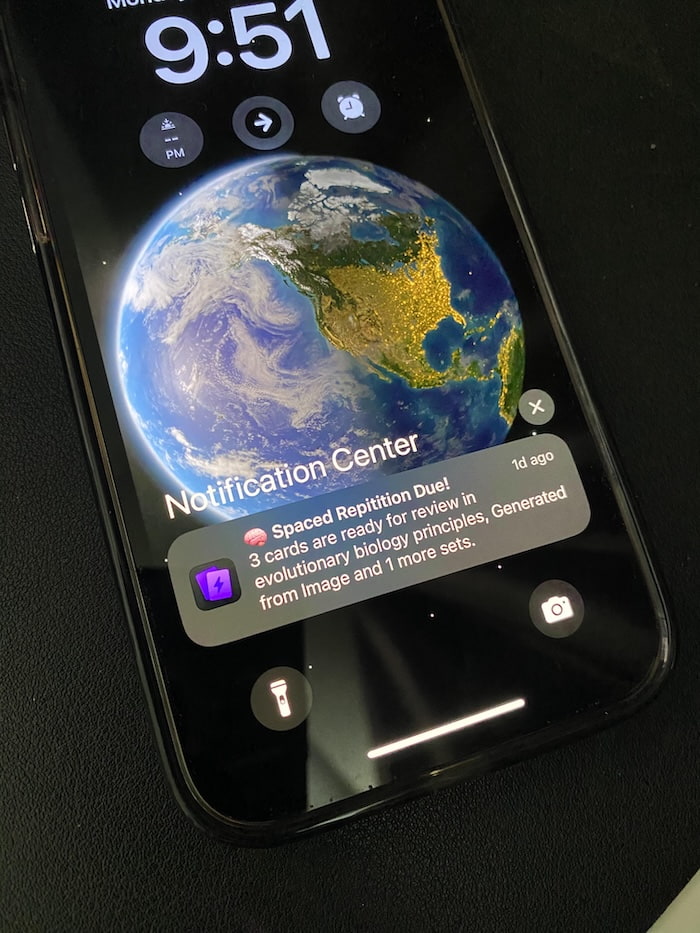
Flashrecall automatically keeps track and reminds you of the cards you don't remember well so you remember faster. Like this :
3. Install and run it
When it opens, it should detect your 8BitDo Zero 2 automatically.
If you don’t see it:
- Make sure the controller is on and connected
- Close and reopen AntiMicroX
- Try a different mode (X-input usually works best)
2.2 Map Buttons To Anki Shortcuts
Here’s a simple, comfy layout you can use:
- Space / Enter – Show answer / move to next card
- 1 – Again
- 2 – Hard
- 3 – Good
- 4 – Easy
- Left/Right arrows – Go back/forward
- R – Replay audio
Now in AntiMicroX:
1. Click on a button (like the A button on the controller)
2. Assign it a keyboard key
Example mapping:
- A button → `Space` (show answer / next card)
- B button → `1` (Again)
- X button → `2` (Hard)
- Y button → `3` (Good)
- R1 → `4` (Easy)
- D-pad Left/Right → Left / Right arrow keys
- D-pad Up → `R` (replay audio)
- D-pad Down → maybe `Ctrl+Z` (undo) if you want
Save this as a profile called something like “Anki Zero 2”.
Now, when Anki is in focus, pressing A on your 8BitDo will act like pressing the spacebar.
Step 3: Tweak Anki Settings For Controller Use
To make this feel smooth, adjust a couple of things in Anki.
3.1 Check Or Customize Shortcuts (Optional)
On Windows, you can install addons for custom shortcuts if you need them, but honestly, the default ones are usually fine.
If you want:
- All grading on face side: Just remember that Anki only lets you grade after showing the answer. Your controller will handle that by:
- A = show answer
- Then B/X/Y/R1 = 1/2/3/4
3.2 Fullscreen Or Big Window
If you’re sitting back from your screen:
- Make Anki window bigger or use a fullscreen addon
- Increase font size in your card templates so you can read from a distance
Now you’ve basically turned Anki + 8BitDo Zero 2 into a couch-friendly flashcard machine.
But… Is This Actually The Best Way To Study?
Here’s the honest bit: using your 8BitDo Zero 2 with Anki on Windows is fun and kind of geeky, but it’s still tied to your computer.
If you want something:
- You can use on your iPhone or iPad
- That already has built-in spaced repetition
- That sends study reminders so you don’t forget to review
- That lets you create flashcards instantly from:
- Images
- Text
- PDFs
- YouTube links
- Audio
- Or just typing normally
…then you’ll probably like Flashrecall a lot more for day-to-day studying.
👉 Check it out here:
https://apps.apple.com/us/app/flashrecall-study-flashcards/id6746757085
How Flashrecall Fits Into This (And Why It’s Easier Than The PC Setup)
If you enjoy optimizing your workflow enough to mess with 8bitdo zero 2 anki windows, you’re exactly the kind of person who appreciates a study app that doesn’t waste your time.
What Flashrecall Does For You
Flashrecall:
- Automatically handles spaced repetition
You don’t have to think about intervals; it just tells you what to review each day.
- Has built-in active recall
It shows you the front, you try to remember, then reveal the answer and grade yourself—same idea as Anki, just smoother.
- Sends study reminders
So you actually stick to your routine instead of forgetting for a week.
- Makes cards super fast
You can:
- Paste text
- Snap a photo of notes or a textbook
- Import from PDFs
- Use YouTube links
- Or type prompts and let it help generate cards
- Works offline
So you can review on the bus, in class, or during random downtime.
- Lets you chat with your flashcards
Stuck on a concept? You can literally ask the app to explain or give more examples based on your cards.
- Runs on iPhone and iPad
Way more portable than dragging a laptop + controller everywhere.
And it’s free to start, so you can just try it without overthinking.
Example: How Your Setup Could Look In Real Life
At Your Desk (Windows + 8BitDo + Anki)
- You sit at your PC
- Open Anki
- Turn on your 8BitDo Zero 2
- AntiMicroX profile loads
- You lean back, one hand on the tiny controller:
- A – show answer
- B/X/Y/R1 – pick Again/Hard/Good/Easy
- D-pad – navigate, replay audio
Nice for longer, focused sessions.
On The Go (iPhone/iPad + Flashrecall)
- You’re on the train, in bed, or waiting somewhere
- Open Flashrecall
- It already has today’s cards ready thanks to spaced repetition
- You tap through cards with your thumb
- You get a study reminder if you forget to open it
No controller. No mapping. Just “open app, study, done.”
Troubleshooting: Common 8BitDo + Anki Problems
If something feels off, here’s what usually goes wrong:
1. Button Presses Don’t Work In Anki
- Check if AntiMicroX (or your mapper) is running
- Make sure Anki is the active window
- Confirm that the button is mapped to a valid key (e.g., `Space`, `1`, `2`, etc.)
- Test the same key on your physical keyboard—if that doesn’t work in Anki, it’s an Anki issue, not the controller
2. Controller Not Detected
- Try a different mode (X-input is usually best)
- Re-pair Bluetooth or try USB
- Check `joy.cpl` again to see if Windows sees it
3. Input Lag Or Double Presses
- In AntiMicroX, reduce any turbo/rapid settings
- Try wired connection instead of Bluetooth if your Bluetooth is flaky
- Make sure you’re not mapping one button to multiple keys accidentally
When To Use Each: Anki + 8BitDo vs Flashrecall
- You like tinkering with setups
- You’re doing long, focused review sessions at your desk
- You want a “hands-off-keyboard” experience
- You want something that just works on your phone
- You need reminders and automatic scheduling
- You like making cards from photos, PDFs, or YouTube
- You want to study anywhere, even offline
- You’re learning languages, medicine, exams, school subjects, or business topics
Honestly, you can use both:
Anki + 8BitDo for PC sessions, and Flashrecall for everyday on-the-go studying.
Wrap-Up
So yeah, 8bitdo zero 2 anki windows absolutely works—you just need a key-mapping app like AntiMicroX, map your buttons to Anki’s keyboard shortcuts, and you’ve got a comfy little flashcard controller setup.
But if you’re tired of fiddling with settings and just want to learn faster with less friction, grab Flashrecall on your iPhone or iPad and let it handle spaced repetition, reminders, and fast card creation for you:
👉 https://apps.apple.com/us/app/flashrecall-study-flashcards/id6746757085
Set up your controller once for fun—but let your everyday studying be simple.
Frequently Asked Questions
Is Anki good for studying?
Anki is powerful but requires manual card creation and has a steep learning curve. Flashrecall offers AI-powered card generation from your notes, images, PDFs, and videos, making it faster and easier to create effective flashcards.
What's the fastest way to create flashcards?
Manually typing cards works but takes time. Many students now use AI generators that turn notes into flashcards instantly. Flashrecall does this automatically from text, images, or PDFs.
How do I start spaced repetition?
You can manually schedule your reviews, but most people use apps that automate this. Flashrecall uses built-in spaced repetition so you review cards at the perfect time.
Related Articles
- Brainscape To Anki: The Complete Guide To Switching Flashcard Apps (And The Smarter Alternative Most People Miss) – Learn a faster way to move your decks and upgrade your whole study workflow.
- Flashcards Reddit: What People Really Use, What Actually Works, And The One App Most Students Don’t Know About Yet – Click to see how Reddit’s favorite flashcard tips stack up (and how to make them 10x easier).
- 1044112126: The Complete Guide To What It Means, Why It Matters, And How To Actually Remember It – Most People Ignore This Number, Here’s Why You Shouldn’t
Research References
The information in this article is based on peer-reviewed research and established studies in cognitive psychology and learning science.
Cepeda, N. J., Pashler, H., Vul, E., Wixted, J. T., & Rohrer, D. (2006). Distributed practice in verbal recall tasks: A review and quantitative synthesis. Psychological Bulletin, 132(3), 354-380
Meta-analysis showing spaced repetition significantly improves long-term retention compared to massed practice
Carpenter, S. K., Cepeda, N. J., Rohrer, D., Kang, S. H., & Pashler, H. (2012). Using spacing to enhance diverse forms of learning: Review of recent research and implications for instruction. Educational Psychology Review, 24(3), 369-378
Review showing spacing effects work across different types of learning materials and contexts
Kang, S. H. (2016). Spaced repetition promotes efficient and effective learning: Policy implications for instruction. Policy Insights from the Behavioral and Brain Sciences, 3(1), 12-19
Policy review advocating for spaced repetition in educational settings based on extensive research evidence
Karpicke, J. D., & Roediger, H. L. (2008). The critical importance of retrieval for learning. Science, 319(5865), 966-968
Research demonstrating that active recall (retrieval practice) is more effective than re-reading for long-term learning
Roediger, H. L., & Butler, A. C. (2011). The critical role of retrieval practice in long-term retention. Trends in Cognitive Sciences, 15(1), 20-27
Review of research showing retrieval practice (active recall) as one of the most effective learning strategies
Dunlosky, J., Rawson, K. A., Marsh, E. J., Nathan, M. J., & Willingham, D. T. (2013). Improving students' learning with effective learning techniques: Promising directions from cognitive and educational psychology. Psychological Science in the Public Interest, 14(1), 4-58
Comprehensive review ranking learning techniques, with practice testing and distributed practice rated as highly effective

FlashRecall Team
FlashRecall Development Team
The FlashRecall Team is a group of working professionals and developers who are passionate about making effective study methods more accessible to students. We believe that evidence-based learning tec...
Credentials & Qualifications
- •Software Development
- •Product Development
- •User Experience Design
Areas of Expertise
Ready to Transform Your Learning?
Start using FlashRecall today - the AI-powered flashcard app with spaced repetition and active recall.
Download on App Store