Create Flashcards In Word: Step-By-Step Guide + A Faster Way Most Students Don’t Know About – Learn the Word method, then see how Flashrecall makes the whole thing way easier and way faster.
create flashcards in word with simple tables, printable cards, and two‑sided layouts, then see why moving them into Flashrecall makes studying way easier.
How Flashrecall app helps you remember faster. It's free
So, You Want To Create Flashcards In Word?
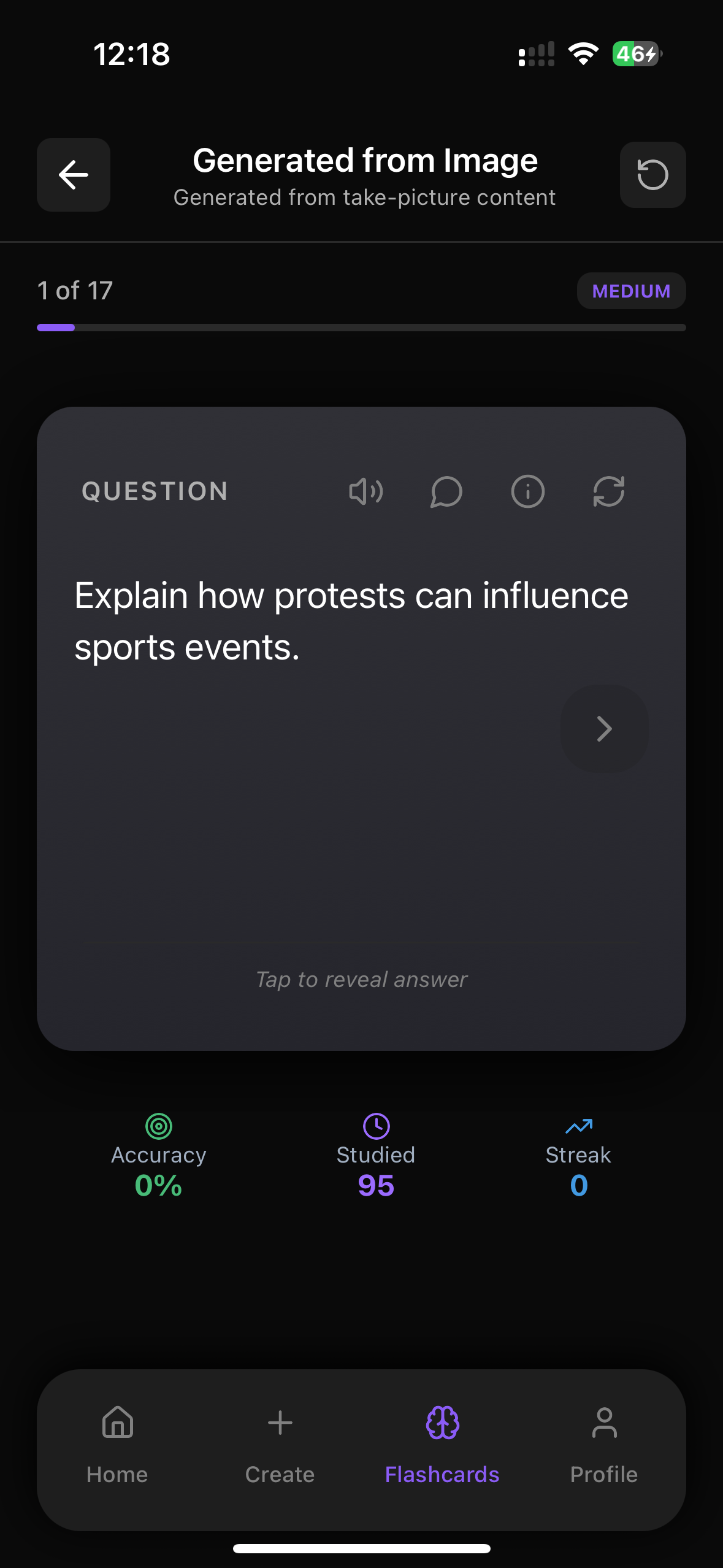
Alright, let’s talk about how to create flashcards in Word in the simplest way: you basically set up a table or custom page layout where one side is the question and the other is the answer, then print and cut them out or use them on-screen. It’s a handy option if you already use Word a lot and just want basic cards. But it can get pretty slow and clunky once you have more than a few dozen flashcards, especially when you need to review or edit them. That’s where a dedicated app like Flashrecall comes in – it does all the spaced repetition and flashcard stuff for you, without the manual formatting drama. You can still start in Word if you like, then move everything into Flashrecall to actually study smarter.
Before we jump into the app side, let’s walk through the Word method properly so you know exactly what you’re doing.
Method 1: Create Flashcards In Word Using A Simple Table
This is the easiest way for most people.
Step 1: Start A New Document
1. Open Microsoft Word
2. Create a Blank Document
You can do this on Windows, Mac, or even Word Online (though printing is easier on desktop).
Step 2: Insert A Table For Your Flashcards
1. Go to Insert → Table
2. Choose 2 columns and maybe 6–10 rows to start
- Left column = Question / Front
- Right column = Answer / Back
You now basically have a flashcard spreadsheet inside Word.
Step 3: Type Your Questions And Answers
In each row:
- Left cell:
- “What is the capital of France?”
- Right cell:
- “Paris”
Or for language learning:
- Left: “Dog (English)”
- Right: “Perro (Spanish)”
Keep each row as one flashcard.
Step 4: Make It Look More Like Real Flashcards
You can format the table so it doesn’t look like a boring grid:
1. Select the whole table
2. Go to Table Design / Layout
3. Increase Row Height (so each card is bigger)
4. Increase Font Size (e.g., 16–20pt so it’s readable when printed)
5. Center the text: Home → Center Align
If you want clean cards:
- Right-click the table → Table Properties → Borders and Shading
- Change border style or thickness to make each card stand out
Step 5: Print And Cut
If you want physical cards:
1. Go to File → Print
2. Choose Landscape orientation if you want wider cards
3. Print on cardstock if you have it (normal paper works too)
4. Cut along the borders with scissors or a paper cutter
You now have physical flashcards created in Word.
The downside?
- Editing is annoying
- You can’t easily shuffle them
- No automatic reminders or spaced repetition
- You have to test yourself manually
That’s exactly the kind of thing Flashrecall solves.
Method 2: Create Flashcards In Word Using “Two-Sided” Cards
If you want front and back printing (double-sided flashcards), this is a bit more advanced.
Step 1: Set Up The Page
1. Layout → Orientation → Landscape
2. Layout → Margins → Narrow (or custom small margins)
3. Insert a 2x4 or 2x5 table so you get 8–10 cards per sheet
Step 2: Front Side Of The Cards
On Page 1, type only the questions:
- Each cell = front of one card
- Keep the order consistent (top-left is card 1, top-right is card 2, etc.)
Step 3: Duplicate For The Back Side
1. Insert a Page Break
2. Copy the entire table from Page 1
3. Paste it on Page 2
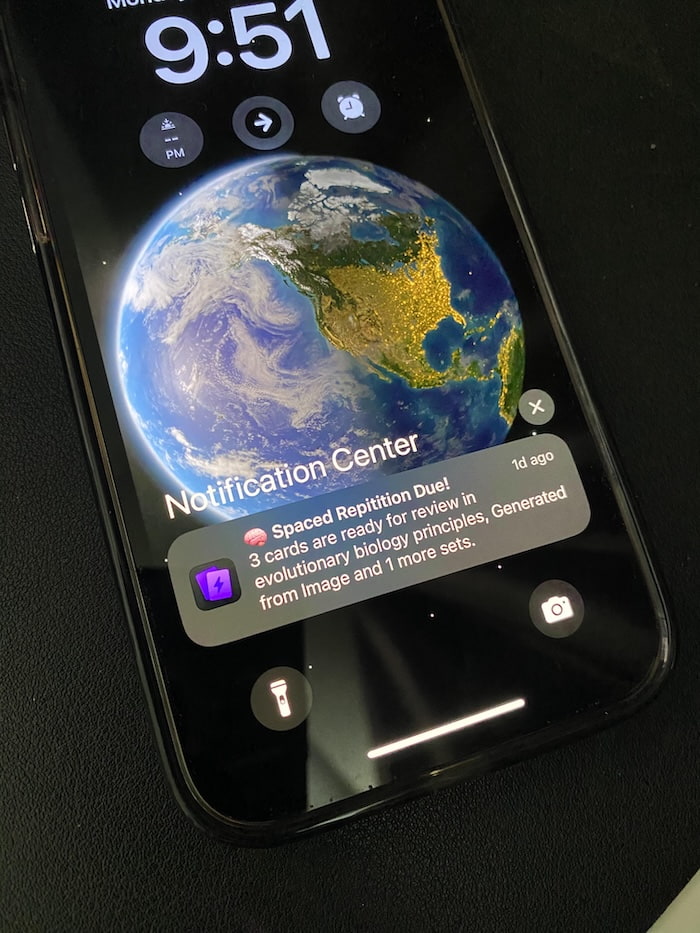
Flashrecall automatically keeps track and reminds you of the cards you don't remember well so you remember faster. Like this :
Now you have two identical tables on two pages.
Step 4: Add The Answers
On Page 2, replace each question with its matching answer in the same cell position:
- Page 1, top-left: “What is 2 + 2?”
- Page 2, top-left: “4”
So when printed double-sided, each question lines up with its answer on the back.
Step 5: Print Double-Sided
1. File → Print
2. Choose Print on Both Sides (Flip on long edge)
3. Test with one sheet first to make sure front and back line up
Then cut your cards, and you’ve got classic front–back flashcards made in Word.
Again: it works. But it’s a bit of a pain to maintain if you’re constantly adding new content.
Why Using Only Word For Flashcards Gets Old Fast
Creating flashcards in Word is fine for:
- A small vocab list
- One exam
- A quick revision sheet
But once you go beyond that, you’ll hit a few problems:
- No spaced repetition – Word doesn’t know when you should review each card
- No tracking – You can’t mark which cards are “hard” or “easy”
- No reminders – If you forget to revise, that’s it
- Editing is clunky – Add one new term? You’re shifting tables, reprinting, recutting
- No search/filter – Good luck finding one specific card in a stack of paper
That’s where a dedicated flashcard app makes life way easier.
A Faster Alternative: Move Your Word Flashcards Into Flashrecall
If you like the idea of flashcards but hate the manual work, Flashrecall basically does the boring parts for you.
You can grab it here:
👉 Flashrecall on the App Store: https://apps.apple.com/us/app/flashrecall-study-flashcards/id6746757085
Here’s how Flashrecall makes your “Word flashcards” life better:
1. Turn Existing Content Into Flashcards Instantly
Instead of manually formatting tables in Word, Flashrecall lets you:
- Paste text directly and auto-generate cards
- Import from PDFs, images, YouTube links, audio, or typed prompts
- Or just type cards manually if you like full control
So if you already made a list in Word (like Q: / A: pairs), you can just copy-paste that into Flashrecall and turn it into real flashcards in seconds.
2. Built-In Active Recall (No More Flipping Paper)
With paper or Word printouts, you have to physically cover the answer and flip cards.
Flashrecall handles this automatically:
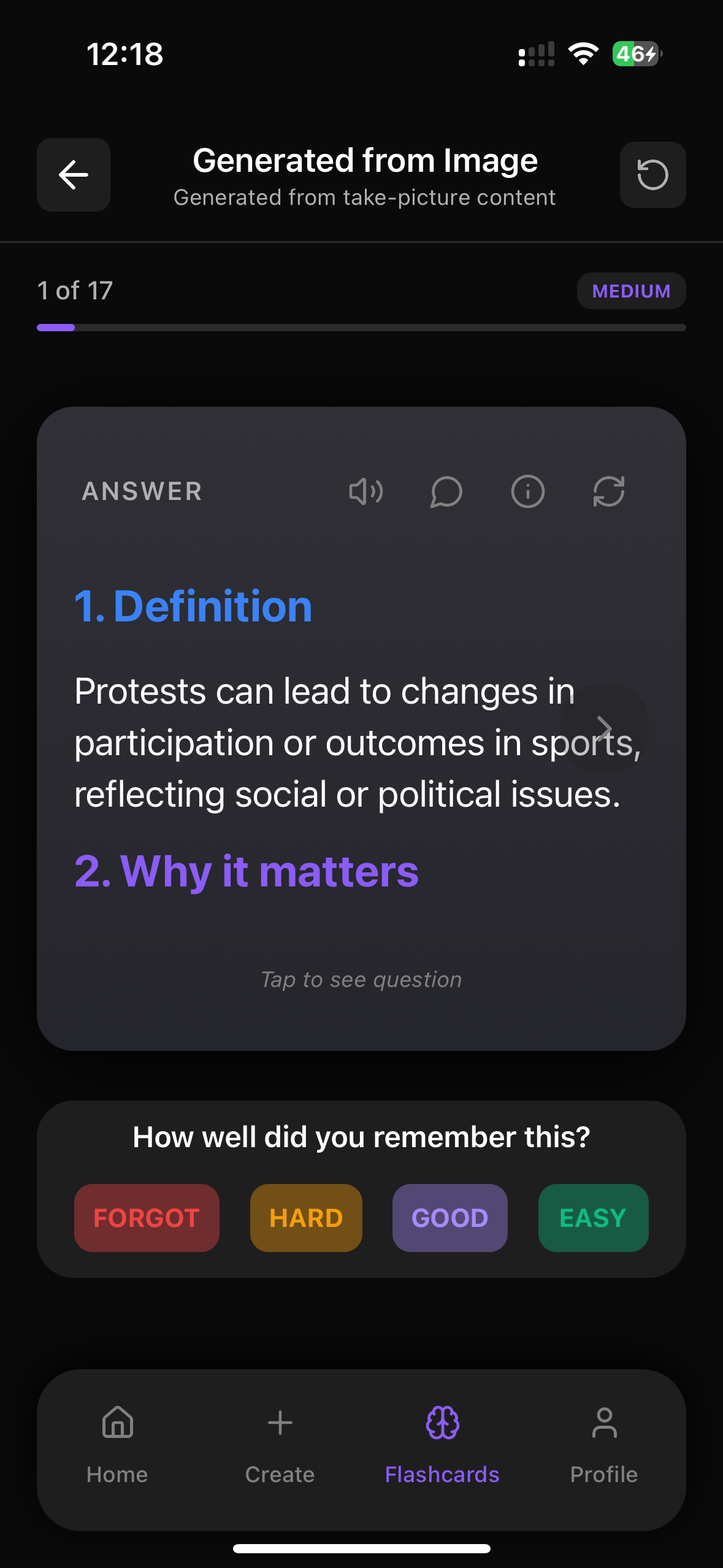
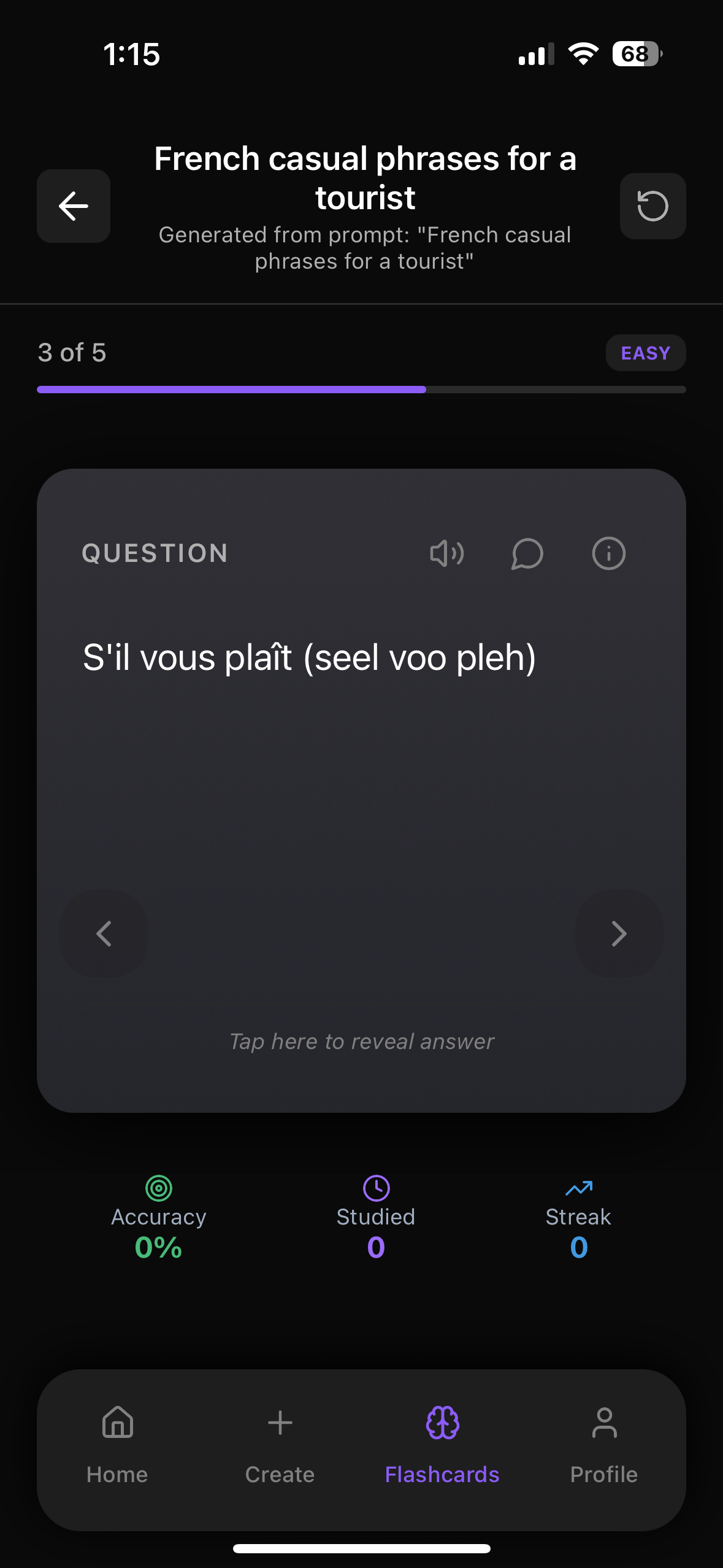
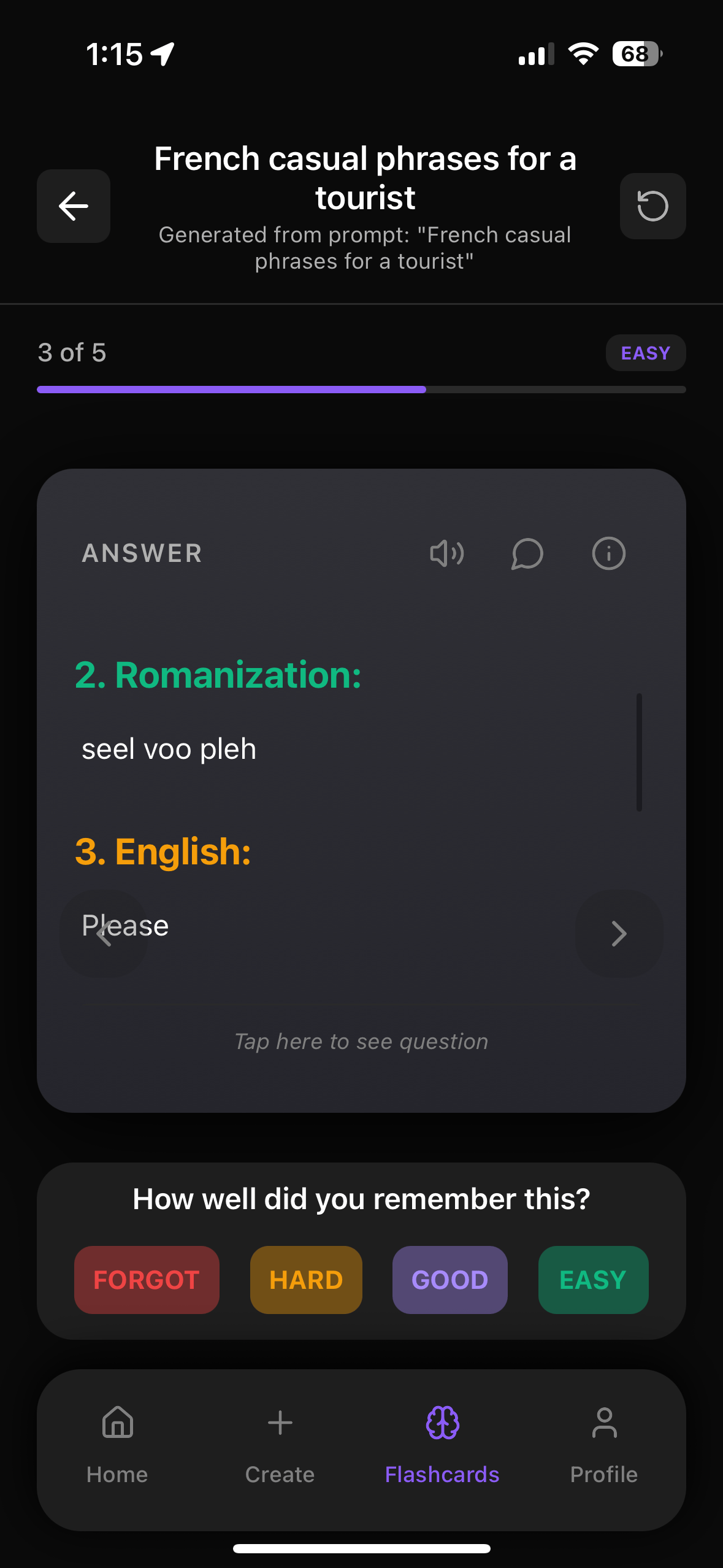
- Shows you the question side first
- You try to recall the answer
- Then you tap to reveal and rate how well you knew it
That rating feeds into spaced repetition automatically.
3. Automatic Spaced Repetition And Study Reminders
This is the big thing Word can’t do.
Flashrecall uses spaced repetition:
- Hard cards come back more often
- Easy cards are shown less often
- You review right before you forget, which is the sweet spot for memory
Plus, you get study reminders, so you don’t have to remember when to review – your phone nudges you.
No printing. No manual scheduling. No “I’ll do it later” and then forgetting.
4. You Can Chat With Your Flashcards
One super cool thing: in Flashrecall you can chat with the flashcard content.
Stuck on a concept?
- Ask follow-up questions
- Get explanations in simple language
- Clarify definitions or examples right inside the app
You definitely can’t do that with a Word table.
5. Works Offline, On iPhone And iPad
- Study on the bus, in bed, on campus – even without internet
- Works on iPhone and iPad
- Fast, modern, and easy to use – no clunky menus like old-school software
And it’s free to start, so you can test it without committing to anything.
When It Still Makes Sense To Use Word
To be fair, there are times when creating flashcards in Word is totally fine:
- You just need a one-time cheat sheet or quick revision deck
- You’re making handouts for a class or workshop
- You like writing things out and physically cutting cards (some people really do)
If that’s you, go for it. Use the table method above, print, and you’re done.
But if you:
- Have more than ~30–50 cards
- Are studying for exams, languages, medicine, law, business, or uni courses
- Need to actually remember stuff long term
Then moving into an app like Flashrecall will save you a lot of time and frustration.
How To Go From Word To Flashrecall In A Few Minutes
Here’s a simple workflow:
Step 1: Clean Up Your Word File
- Put each question and answer pair on one line, like:
- `What is the capital of France? – Paris`
- Or separate them with a tab or line break
Step 2: Copy Your Content
- Select your list in Word
- Copy it
Step 3: Paste Into Flashrecall
In Flashrecall:
1. Create a new deck
2. Use the import / paste option (or just paste into the card creator)
3. Let the app generate cards from your text
Now all your “Word flashcards” are real, interactive flashcards with spaced repetition and active recall built in.
Word vs Flashrecall: Quick Comparison
| Feature | Word Flashcards | Flashrecall |
|---|---|---|
| Card creation speed | Slow, manual tables | Very fast – from text, PDFs, images, audio, YouTube, or manual |
| Spaced repetition | None | Built-in, automatic |
| Study reminders | None | Yes, auto reminders to review |
| Active recall | Manual flipping | Built-in question → reveal → rate flow |
| Editing & updating | Awkward, reprint needed | Instant edits, no printing |
| Portability | Physical cards only | iPhone & iPad, works offline |
| Extra help | None | Chat with your flashcards to understand topics better |
| Best for | Small, one-off sets | Ongoing learning, exams, languages, long-term memory |
Final Thoughts
So yeah, you can absolutely create flashcards in Word using tables and double-sided printing, and for small, simple sets it works totally fine. But once you start building bigger decks or studying seriously, Word turns into a bit of a hassle.
If you want to actually remember stuff without fighting with formatting, try moving your cards into Flashrecall instead:
👉 https://apps.apple.com/us/app/flashrecall-study-flashcards/id6746757085
You get automatic spaced repetition, active recall, reminders, offline study, and even the ability to chat with your cards when you’re confused. Start in Word if you like, but don’t feel stuck there – your brain (and your printer) will be much happier with a proper flashcard app.
Frequently Asked Questions
Is Anki good for studying?
Anki is powerful but requires manual card creation and has a steep learning curve. Flashrecall offers AI-powered card generation from your notes, images, PDFs, and videos, making it faster and easier to create effective flashcards.
What's the fastest way to create flashcards?
Manually typing cards works but takes time. Many students now use AI generators that turn notes into flashcards instantly. Flashrecall does this automatically from text, images, or PDFs.
How do I start spaced repetition?
You can manually schedule your reviews, but most people use apps that automate this. Flashrecall uses built-in spaced repetition so you review cards at the perfect time.
Related Articles
- Anki Flashcards English: 7 Powerful Ways To Learn Faster (And The Better iOS Alternative Most Students Don’t Know About)
- Moina Flashcards: The Best Alternative Most Students Don’t Know About (Yet) – Learn Faster With Smarter, Automatic Study Tools
- Cram Com Flashcards: Why Most Students Are Switching To Smarter Apps Like Flashrecall For Faster Results – Stop Wasting Study Time And Actually Remember What You Learn
Research References
The information in this article is based on peer-reviewed research and established studies in cognitive psychology and learning science.
Cepeda, N. J., Pashler, H., Vul, E., Wixted, J. T., & Rohrer, D. (2006). Distributed practice in verbal recall tasks: A review and quantitative synthesis. Psychological Bulletin, 132(3), 354-380
Meta-analysis showing spaced repetition significantly improves long-term retention compared to massed practice
Carpenter, S. K., Cepeda, N. J., Rohrer, D., Kang, S. H., & Pashler, H. (2012). Using spacing to enhance diverse forms of learning: Review of recent research and implications for instruction. Educational Psychology Review, 24(3), 369-378
Review showing spacing effects work across different types of learning materials and contexts
Kang, S. H. (2016). Spaced repetition promotes efficient and effective learning: Policy implications for instruction. Policy Insights from the Behavioral and Brain Sciences, 3(1), 12-19
Policy review advocating for spaced repetition in educational settings based on extensive research evidence
Karpicke, J. D., & Roediger, H. L. (2008). The critical importance of retrieval for learning. Science, 319(5865), 966-968
Research demonstrating that active recall (retrieval practice) is more effective than re-reading for long-term learning
Roediger, H. L., & Butler, A. C. (2011). The critical role of retrieval practice in long-term retention. Trends in Cognitive Sciences, 15(1), 20-27
Review of research showing retrieval practice (active recall) as one of the most effective learning strategies
Dunlosky, J., Rawson, K. A., Marsh, E. J., Nathan, M. J., & Willingham, D. T. (2013). Improving students' learning with effective learning techniques: Promising directions from cognitive and educational psychology. Psychological Science in the Public Interest, 14(1), 4-58
Comprehensive review ranking learning techniques, with practice testing and distributed practice rated as highly effective

FlashRecall Team
FlashRecall Development Team
The FlashRecall Team is a group of working professionals and developers who are passionate about making effective study methods more accessible to students. We believe that evidence-based learning tec...
Credentials & Qualifications
- •Software Development
- •Product Development
- •User Experience Design
Areas of Expertise
Ready to Transform Your Learning?
Start using FlashRecall today - the AI-powered flashcard app with spaced repetition and active recall.
Download on App Store