Anki Google Drive: The Complete Sync & Backup Guide (And A Faster Alternative Most Students Miss)
Anki Google Drive setup can quietly corrupt your collection. See the safe backup method, why AnkiWeb is required for sync, and when to just use Flashrecall.
How Flashrecall app helps you remember faster. It's free
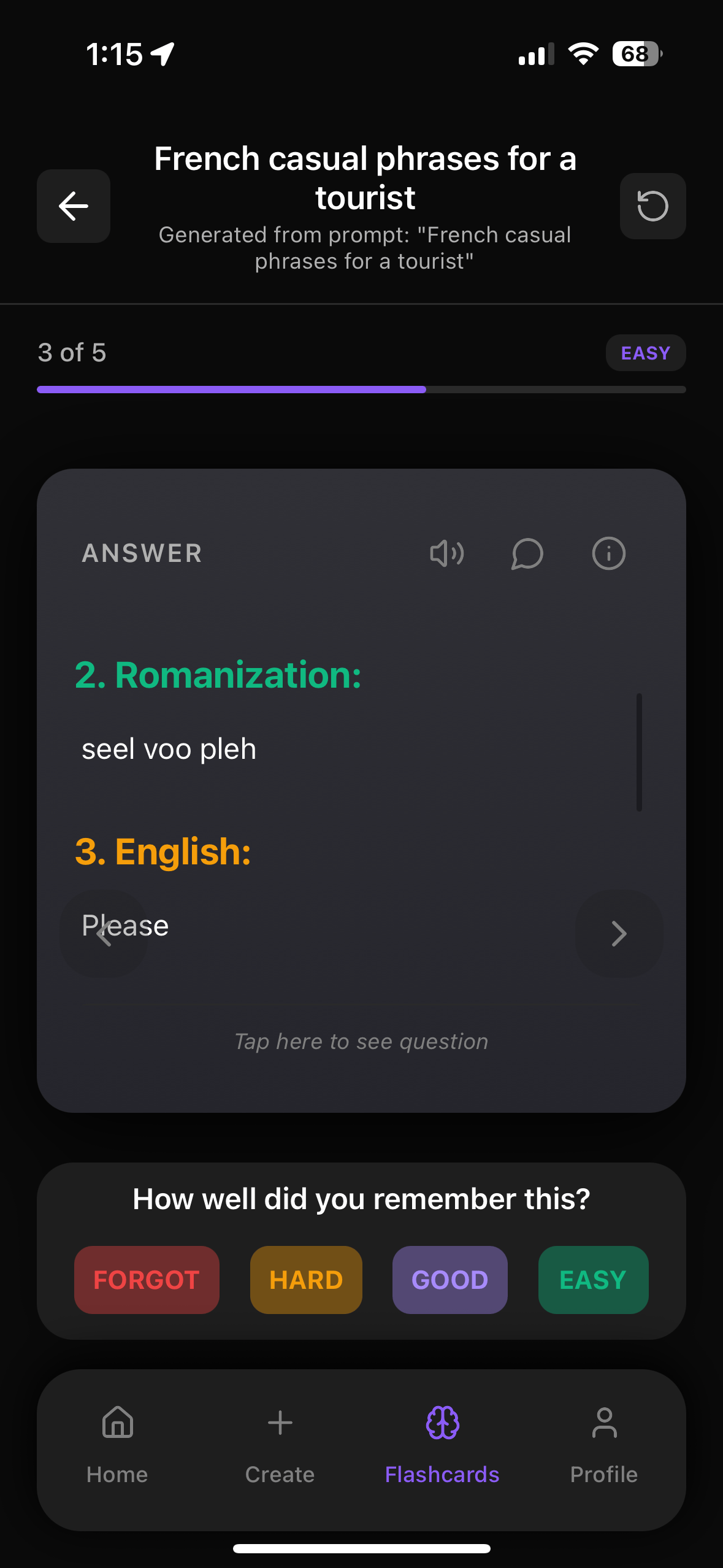
Alright, Let’s Talk About Anki Google Drive (And What Actually Works)
So, you’re trying to figure out how Anki Google Drive works for syncing or backing up your flashcards? In simple terms, people use Google Drive with Anki to store or sync their decks between devices, usually by saving the Anki file in a Drive folder. The idea is: “If it’s in Google Drive, it’s safe and synced, right?” — but with Anki, that can easily corrupt your collection if done wrong. That’s why a lot of people end up switching to easier apps like Flashrecall), which handles sync and backups automatically without weird workarounds.
Let’s break down what actually works, what can break your decks, and what you should do instead.
Quick Summary: Can You Use Anki With Google Drive?
Short version:
- You should NOT put your live Anki collection directly in a Google Drive folder
(Drive’s sync can corrupt your database while Anki is open)
- You CAN use Google Drive for backups (exported files, not the active database)
- For real syncing between devices, you’re supposed to use AnkiWeb, not Google Drive
- If you want stress‑free sync, backups, and spaced repetition without any setup, Flashrecall does all of this automatically on iPhone and iPad
Here’s the link if you want to check it out while you read:
👉 Flashrecall on the App Store)
How Anki Stores Your Data (And Why Google Drive Can Mess It Up)
Anki doesn’t just have one nice neat file like “my_deck.anki”. It uses a database file plus a bunch of media files in a folder.
On desktop, your Anki stuff lives in a profile folder that includes things like:
- `collection.anki2` – your main database (super fragile if messed with)
- `media` folder – all your images, sounds, etc.
- Various backup files
Cloud tools like Google Drive, Dropbox, OneDrive, etc. sync files in the background. If Anki is open while Drive is syncing that database, you can end up with:
- Partial uploads
- Conflicting versions
- Corrupted decks that won’t open
That’s why the official Anki docs say:
> Don’t put your active Anki folder in a cloud drive. Only use cloud storage for backups.
So yeah, “Anki Google Drive sync” for live use is basically a trap.
The Safe Way: Using Google Drive For Anki Backups (Not Live Sync)
If you still want Google Drive involved, here’s the safe approach: use it only for backups, not for your active collection.
Step 1: Export Your Deck As A Backup
On Anki Desktop:
1. Open Anki
2. Click File → Export
3. Choose:
- Export format: `*.apkg` (Anki deck package)
- You can export all decks or a specific one
4. Save the `.apkg` file somewhere on your computer
This `.apkg` file is a snapshot of your deck — not the live database.
Step 2: Upload That Backup File To Google Drive
- Go to Google Drive in your browser
- Drag and drop the `.apkg` file in
- Optional: create a folder like `Anki_Backups` and store them by date
This way:
- Your live Anki files stay local and safe
- Your backups are safely stored in Drive
- If your computer dies, you can download the `.apkg` from Drive and import it again
What You Should NOT Do
- Don’t move your entire Anki profile folder into a Google Drive sync folder
- Don’t open Anki while Google Drive is still syncing that folder
- Don’t rely on Drive as your primary sync system for daily use
If you want true syncing between devices, you should use AnkiWeb — or, honestly, just use an app that makes this painless.
Why People Want Anki + Google Drive In The First Place
Most people trying “Anki Google Drive” are usually after one of these:
1. Sync between multiple computers
2. Have an easy cloud backup in case their laptop dies
3. Share decks with friends or classmates
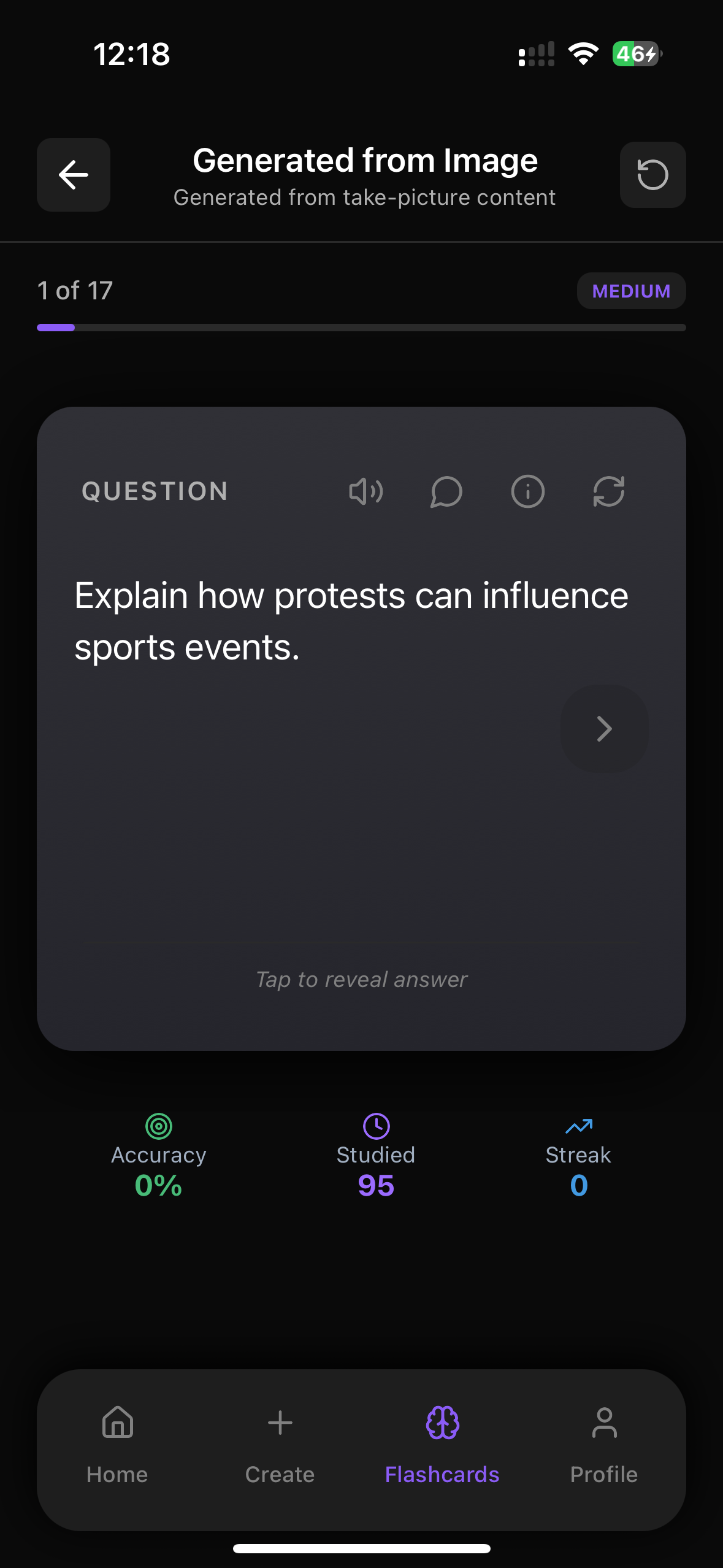
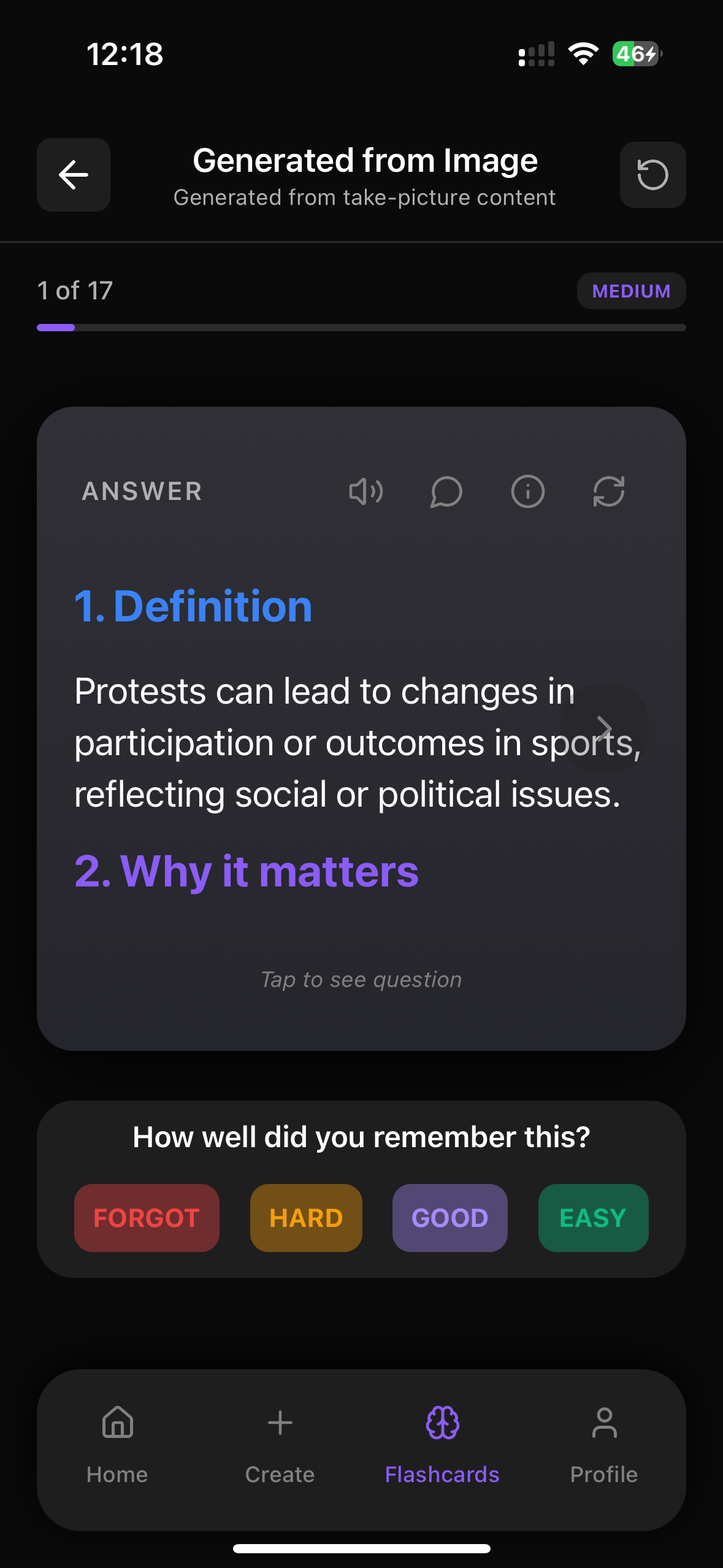
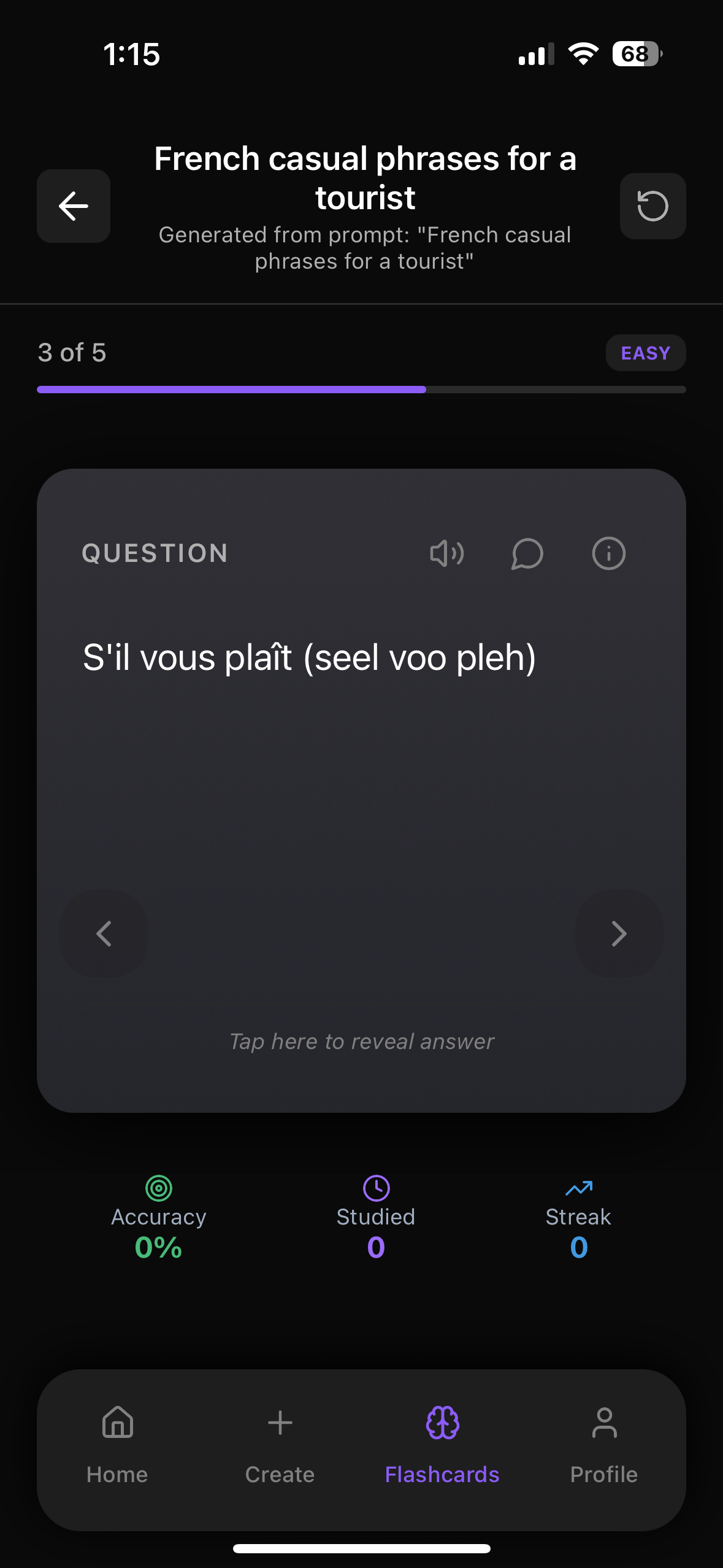
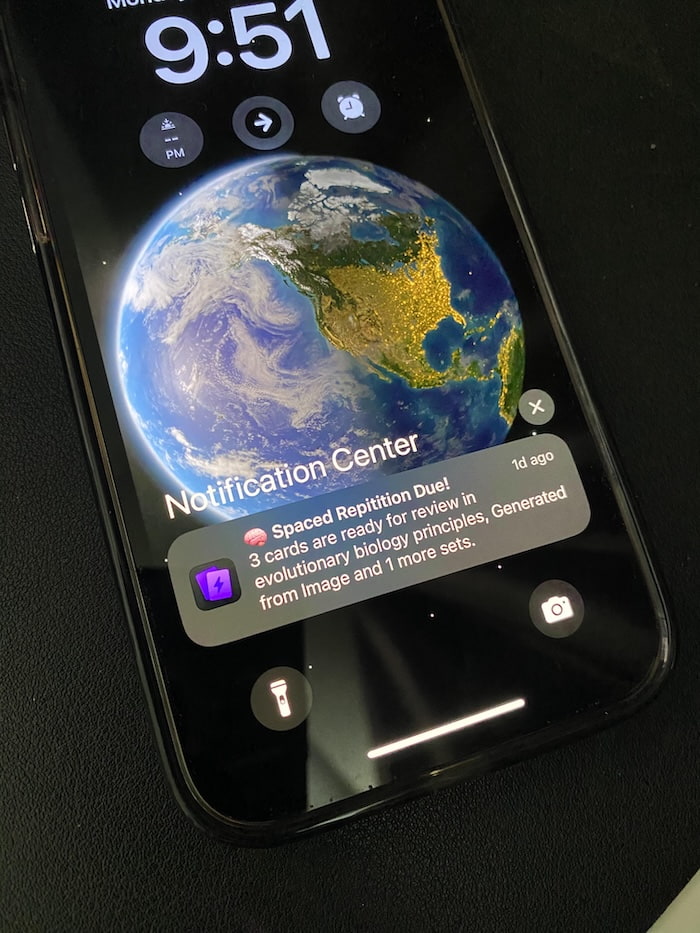
Flashrecall automatically keeps track and reminds you of the cards you don't remember well so you remember faster. Like this :
4. Free alternative to AnkiWeb or more control over files
All of that makes sense — you just need to do it in a way that doesn’t risk breaking your decks.
If you’re on iPhone or iPad and just want something that:
- Syncs automatically
- Backs up your stuff
- Works offline
- Doesn’t require messing with folders and databases
Then Flashrecall already does this in the background, no setup needed.
A Simpler Option: How Flashrecall Handles Syncing And Backups For You
Instead of fighting with “Anki Google Drive” setups, a lot of people are just moving to apps that do this stuff for them.
Flashrecall) is built for that “I just want this to work” experience:
- Automatic sync between iPhone and iPad
No Drive, no AnkiWeb, no manual exports — it just syncs.
- Works offline
You can study on the bus, plane, or in a no‑WiFi classroom, and it syncs when you’re back online.
- Built‑in spaced repetition & active recall
You don’t have to tweak settings — it reminds you when to review, and you just tap through.
- Fast and modern UI
No clunky menus, just quick card creation and clean study sessions.
- Free to start
You can try it without committing to anything.
So instead of worrying “is Google Drive going to corrupt my Anki collection?”, you just open the app and study.
Anki + Google Drive vs Flashrecall: What’s Actually Easier?
Here’s a simple comparison for what you’re probably trying to do.
1. Sync Between Devices
- Not recommended for live sync
- Risk of corrupted decks if Anki is open while Drive is syncing
- Requires careful setup and discipline (close Anki before sync, avoid conflicts)
- Sync is built‑in for iPhone and iPad
- No external tools needed
- You just log in and your cards are there
2. Backups
- You must export `.apkg` files manually
- Then upload them to Google Drive
- Then keep track of versions and dates yourself
- Your data is stored safely in the cloud
- You don’t have to think about backup files
- If you delete the app or change devices, you just log back in
3. Making Cards Fast
- Great for manual card creation
- But importing from different sources can feel clunky
You can make flashcards instantly from:
- Images (e.g., textbook pages, lecture slides)
- Text
- Audio
- PDFs
- YouTube links
- Typed prompts
Or just make them manually if you like control.
For example:
- Snap a photo of a biology diagram → Flashrecall turns it into cards
- Paste a YouTube lecture link → get cards auto‑generated from it
No exporting, no weird add‑ons, no file juggling.
How To Use Google Drive Safely With Anki (If You Really Want To)
If you’re set on using Google Drive with Anki, here’s the safest pattern:
Option 1: Use It Only For Backups
1. Create a regular backup schedule
- Once a week (or after big changes), export your decks
2. Store them on Google Drive
- Keep them in a folder like `Anki_Backups/2025/01-January`
3. Don’t touch your live Anki folder
- Leave it out of any sync folders
Option 2: Use Google Drive To Move Decks Between Devices (One‑Way)
If you want to move a deck from one computer to another:
1. Export the deck as `.apkg`
2. Upload that file to Google Drive
3. On the other device, download it
4. Import it into Anki there
This is not real-time sync, but it’s a safe one‑time transfer.
When It Might Be Better To Switch To A Simpler App
If any of this sounds like too much work just to study flashcards… you’re not wrong.
You might be better off with something that:
- Handles spaced repetition automatically
- Sends study reminders so you don’t forget to review
- Works offline
- Syncs without you ever touching Google Drive
That’s exactly what Flashrecall is designed for.
It’s especially good for:
- Language learning (vocab, grammar, phrases)
- School and university subjects
- Medicine, nursing, and other heavy‑memorization fields
- Business, certifications, or any exam prep
You can even chat with your flashcards if you’re unsure about something — like having a mini tutor built into your deck.
Grab it here if you want to try it:
👉 Flashrecall – Study Flashcards)
Final Thoughts: Anki Google Drive Is… Fine For Backups, Not For Sync
So to wrap it up:
- Using Anki Google Drive for live sync is risky and can corrupt your collection
- Using Google Drive for backups or one‑way transfers is totally fine
- For proper syncing, Anki expects you to use AnkiWeb, not Drive
- If you just want a smooth, modern flashcard experience with automatic sync, backups, spaced repetition, and fast card creation, Flashrecall is a much easier option
If you’re tired of fighting with files and just want to study, skip the Google Drive gymnastics and let the app handle the boring stuff for you.
Again, here’s the link so you don’t have to scroll back up:
👉 https://apps.apple.com/us/app/flashrecall-study-flashcards/id6746757085
Frequently Asked Questions
Is Anki good for studying?
Anki is powerful but requires manual card creation and has a steep learning curve. Flashrecall offers AI-powered card generation from your notes, images, PDFs, and videos, making it faster and easier to create effective flashcards.
What's the fastest way to create flashcards?
Manually typing cards works but takes time. Many students now use AI generators that turn notes into flashcards instantly. Flashrecall does this automatically from text, images, or PDFs.
What's the most effective study method?
Research consistently shows that active recall combined with spaced repetition is the most effective study method. Flashrecall automates both techniques, making it easy to study effectively without the manual work.
What should I know about Google?
Anki Google Drive: The Complete Sync & Backup Guide (And A Faster Alternative Most Students Miss) covers essential information about Google. To master this topic, use Flashrecall to create flashcards from your notes and study them with spaced repetition.
Related Articles
- Web Anki: The Complete Guide To Studying Online Faster (And A Smarter Alternative Most People Miss) – If you’re tired of clunky browser tools, this breaks down web Anki and shows you a smoother way to study.
- Anki Flip Cards: 7 Powerful Upgrades To Study Faster (And The App Most Students Don’t Know About) – Stop wasting time flipping the same cards and switch to smarter tools that actually help you remember.
- Anki Dropbox Sync: Why It’s So Clunky (And The Better Way To Back Up Your Flashcards) – Stop fighting with broken sync and learn the smarter, faster way to keep your cards safe and in sync on all your devices.
Research References
The information in this article is based on peer-reviewed research and established studies in cognitive psychology and learning science.
Cepeda, N. J., Pashler, H., Vul, E., Wixted, J. T., & Rohrer, D. (2006). Distributed practice in verbal recall tasks: A review and quantitative synthesis. Psychological Bulletin, 132(3), 354-380
Meta-analysis showing spaced repetition significantly improves long-term retention compared to massed practice
Carpenter, S. K., Cepeda, N. J., Rohrer, D., Kang, S. H., & Pashler, H. (2012). Using spacing to enhance diverse forms of learning: Review of recent research and implications for instruction. Educational Psychology Review, 24(3), 369-378
Review showing spacing effects work across different types of learning materials and contexts
Kang, S. H. (2016). Spaced repetition promotes efficient and effective learning: Policy implications for instruction. Policy Insights from the Behavioral and Brain Sciences, 3(1), 12-19
Policy review advocating for spaced repetition in educational settings based on extensive research evidence
Karpicke, J. D., & Roediger, H. L. (2008). The critical importance of retrieval for learning. Science, 319(5865), 966-968
Research demonstrating that active recall (retrieval practice) is more effective than re-reading for long-term learning
Roediger, H. L., & Butler, A. C. (2011). The critical role of retrieval practice in long-term retention. Trends in Cognitive Sciences, 15(1), 20-27
Review of research showing retrieval practice (active recall) as one of the most effective learning strategies
Dunlosky, J., Rawson, K. A., Marsh, E. J., Nathan, M. J., & Willingham, D. T. (2013). Improving students' learning with effective learning techniques: Promising directions from cognitive and educational psychology. Psychological Science in the Public Interest, 14(1), 4-58
Comprehensive review ranking learning techniques, with practice testing and distributed practice rated as highly effective

FlashRecall Team
FlashRecall Development Team
The FlashRecall Team is a group of working professionals and developers who are passionate about making effective study methods more accessible to students. We believe that evidence-based learning tec...
Credentials & Qualifications
- •Software Development
- •Product Development
- •User Experience Design
Areas of Expertise
Ready to Transform Your Learning?
Start using FlashRecall today - the AI-powered flashcard app with spaced repetition and active recall.
Download on App Store